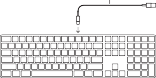
Welcome to your Apple Magic Keyboard with Numeric Keypad
Your Apple Magic Keyboard has a rechargeable battery and uses Bluetooth® technology to connect wirelessly to
your Mac.
This guide shows you how to use your Magic Keyboard, including pairing, customization, and recharging the battery.
Update your software
To use your Magic Keyboard and its full range of features, update your Mac to macOS 10.12.4 or later.
To update to the latest version of macOS, choose Apple menu > App Store to see if there are updates. Follow the onscreen instructions to update macOS.
Set up your Magic Keyboard
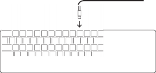
Lightning to USB cable

On/off switch Lightning port
To pair your Magic Keyboard with your Mac, use the Lightning to USB cable that came with your keyboard. Plug the
Lightning end into the Lightning port on your keyboard, and the USB end into a USB port on your Mac. Slide the keyboard on/off switch to on (so you see green on the switch).
Your keyboard will pair automatically with your Mac.
After the keyboard is paired, you can disconnect the cable and use your keyboard wirelessly.
Customize your Magic Keyboard
Change the modifier keys, assign keyboard shortcuts to menu commands in macOS applications and the Finder, and more.
To customize your Magic Keyboard:
Choose Apple menu > System Preferences, then click Keyboard.
Click Keyboard, Text, Shortcuts, or Input Sources to customize the keyboard.
Use the function keys
Use the function keys at the top of the keyboard to adjust the brightness of display, open Mission Control, access applications with Launchpad, control the volume, and more.
Decrease or increase the brightness of the Mac display. | |
Open Mission Control for a comprehensive view of what’s running on your Mac, including Dashboard, all your spaces, and all open windows. | |
Open Launchpad to instantly see all of the applications on your Mac. Click an application to open it. | |
Rewind or go to the previous song, movie, or slideshow. | |
Play or pause songs, movies, or slideshows. | |
Fast-forward or go to the next song, movie, or slideshow. | |
Mute the sound coming from the speakers or headphone port on your Mac. | |
Decrease or increase the volume of sound coming from the speakers or headphone port on your Mac. | |
Press and hold the Media Eject key to eject a disc. |













Rename your Magic Keyboard
Your Mac automatically gives your Magic Keyboard a unique name the first time you pair it. You can rename it in Bluetooth preferences.
To rename your keyboard:
Choose Apple menu > System Preferences, then click Bluetooth.
Control-click the keyboard, then choose Rename.
Enter a name and click OK.
Recharge the battery
Use the Lightning to USB cable that came with your keyboard. Plug the Lightning end into the Lightning port on your keyboard, and the USB end into a USB port on your Mac or a USB power adapter.
To check the battery status, choose Apple menu > System Preferences, then click Keyboard. The battery level is shown in the lower-left corner.
Note: When you aren’t using the Magic Keyboard, it goes to sleep to
conserve battery power. If you won’t be using your keyboard for an extended period, turn it off to conserve even more power.
Remove a pairing
After you pair your Magic Keyboard with a Mac, you can pair it again with a different Mac. To do this, remove the existing pairing and then pair the keyboard again.
To remove a pairing:
Choose Apple menu > System Preferences, then click Bluetooth.

Select the keyboard, then click the Delete button next to the keyboard name.
Clean your Magic Keyboard
To clean the outside of your keyboard, use a lint-free cloth. Don’t get moisture in any openings or use aerosol sprays, solvents, or abrasives.
Ergonomics
When using your Magic Keyboard, it’s important to find a comfortable posture, change your position often, and take frequent breaks.
For information about ergonomics, health, and safety, visit the ergonomics website at www.apple.com/about/ergonomics.
Battery
Your Magic Keyboard contains no user- serviceable parts. Don’t attempt to open or disassemble your Magic Keyboard or remove, crush, or puncture the battery in your Magic Keyboard, or expose it to high temperatures or liquids. Disassembling your Magic Keyboard may damage it or may cause injury to you.
The lithium-ion battery in your
Magic Keyboard should be serviced or recycled by Apple or an authorized service provider, and disposed of separately from
household waste. For information about Apple lithium-ion batteries, go to www.apple.com/batteries.
More information
For more information about using your keyboard, open Mac Help and search for “keyboard.”
For support and troubleshooting information, user discussions, and the latest Apple software downloads, go to www.apple.com/support.
Utilisation de votre clavier Apple
Magic Keyboard avec clavier numérique Votre clavier Apple Magic Keyboard est doté d’une batterie rechargeable et exploite la technologie Bluetooth® pour se connecter sans fil à votre Mac.
Le présent guide vous explique comment utiliser votre clavier Magic Keyboard, notamment son jumelage, sa personnalisation et la recharge de sa batterie.
Mise à jour de votre logiciel
Pour utiliser votre clavier Magic Keyboard et l’ensemble de ses fonctionnalités, mettez
votre Mac à jour à macOS 10.12.4 ou ultérieur.
Pour mettre à jour macOS vers la dernière version, choisissez le menu Pomme >
App Store pour savoir si des mises à jour sont proposées. Suivez les instructions à l’écran pour mettre à jour macOS.
Configuration de votre clavier Magic Keyboard
Câble Lightning vers USB
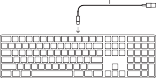

Interrupteur Marche/Arrêt
Port Lightning
Pour jumeler votre clavier Magic Keyboard avec votre Mac, utilisez le câble Lightning vers USB fourni avec votre clavier Magic Keyboard. Branchez l’extrémité Lightning sur le port correspondant de votre clavier et l’extrémité USB sur un des ports USB de votre Mac. Allumez le clavier à l’aide de son interrupteur marche/arrêt l’indicateur passe au vert.
Votre clavier se jumelle alors automatiquement avec votre Mac.
Une fois le jumelage opéré, vous pouvez débrancher le câble et utiliser votre clavier, sans fil.
Personnalisation de votre clavier Magic Keyboard
Changez de touches de modification, attribuez des raccourcis clavier à des commandes de menu dans les applications macOS et dans le Finder, et plus encore.
Pour personnaliser votre clavier Magic Keyboard :
Choisissez le menu Pomme > Préférences Système, puis cliquez sur Clavier.
Cliquez sur Clavier, Texte, Raccourcis ou Méthodes de saisie pour personnaliser le clavier.
Touches de fonction
Utilisez les touches de fonction en haut du clavier pour, entre autres, régler la luminosité de l’écran, ouvrir Mission Control, accéder à des applications via Launchpad ou contrôler le volume.
Diminuez ou augmentez la luminosité de l’écran du Mac. | |
Ouvrez Mission Control pour obtenir une vue complète de ce qui s’exécute sur votre Mac, notamment Dashboard, l’intégralité de vos espaces et toutes les fenêtres ouvertes. | |
Ouvrez Launchpad pour afficher instantanément toutes les applications sur votre Mac. Cliquez sur une application pour l’ouvrir. | |
Revenez en arrière ou accédez au morceau, à la séquence ou au diaporama précédent. | |
Lisez ou mettez des morceaux, des séquences ou des diaporamas en pause. | |
Avancez ou accédez au morceau, à la séquence ou au diaporama suivant. | |
Coupez le son provenant des haut-parleurs ou du port de sortie casque de votre Mac. | |
Diminuez ou augmentez le volume du son provenant des haut-parleurs ou du port de sortie casque de votre Mac. | |
Maintenez la touche d’éjection de disque enfoncée pour éjecter un disque. |













Changement du nom de votre clavier Magic Keyboard
La première fois que vous jumelez votre clavier Magic Keyboard, votre Mac lui attribue automatiquement un nom unique. Vous pouvez changer ce nom dans les préférences Bluetooth.
Pour renommer votre clavier :
Choisissez le menu Pomme > Préférences Système, puis cliquez sur Bluetooth.
Tout en maintenant la touche Contrôle enfoncée, cliquez sur le clavier, puis choisissez Renommer.
Saisissez un nom, puis cliquez sur Renommer.
Recharge de la batterie
Utilisez le câble Lightning vers USB fourni avec votre clavier. Branchez l’extrémité Lightning sur le port correspondant de votre clavier et l’extrémité USB sur un des ports USB de votre Mac ou sur un adaptateur secteur USB.
Pour vérifier l’état de la batterie, choisissez le menu Pomme > Préférences Système, puis cliquez sur Clavier. Le niveau de charge de
la batterie se trouve dans le coin inférieur gauche.
Remarque : si vous n’utilisez pas le clavier Magic Keyboard, ce dernier se met en veille pour économiser la batterie. Si vous prévoyez de ne pas utiliser votre clavier pendant relativement longtemps, éteignez-le pour économiser plus encore le niveau de charge.
Suppression d’un jumelage
Après avoir jumelé votre clavier
Magic Keyboard avec un Mac, vous avez la possibilité de le rejumeler avec un autre. Pour ce faire, supprimez le jumelage existant, puis établissez-en un nouveau.
Pour supprimer un jumelage :
Choisissez le menu Pomme > Préférences Système, puis cliquez sur Bluetooth.

Sélectionnez le clavier, puis cliquez sur le bouton Supprimer en regard de son nom.
Nettoyage de votre clavier Magic Keyboard
Au moment de nettoyer l’extérieur de votre clavier, servez-vous d’un chiffon non
pelucheux. Veillez à ne pas laisser l’humidité pénétrer par les orifices et n’utilisez pas
de vaporisateurs, de produits solvants ou abrasifs.
Ergonomie
Lors de l’utilisation de votre clavier
Magic Keyboard, il est important d’adopter une posture confortable, de changer souvent de position et de prendre des pauses fréquentes.
Batterie
Votre clavier Magic Keyboard ne contient aucune pièce réparable par l’utilisateur.
Ne tentez pas d’ouvrir ou de démonter votre clavier Magic Keyboard, ni de retirer, d’écraser ou de percer la batterie insérée dans votre clavier Magic Keyboard. Ne l’exposez pas à des températures élevées ou à des liquides. En démontant votre clavier Magic Keyboard, vous risquez de l’endommager ou de vous blesser.
Plus d’informations
Pour en savoir plus sur l’utilisation de votre clavier, ouvrez l’Aide Mac, puis recherchez le terme « clavier ».
Pour toute information concernant l’assistance et le dépannage, les forums de discussion et le téléchargement des derniers logiciels d’Apple, rendez-vous sur www.apple.com/fr/support.
Sólo para México: Favor de leer este instructivo antes de utilizar el equipo. Modelo: A1843
Bienvenido a la información sobre el teclado Magic Keyboard de Apple con teclado numérico
El teclado Magic Keyboard de Apple dispone de una batería recargable y utiliza la tecnología Bluetooth® para conectarse al Mac de forma inalámbrica.
En esta guía se describe cómo usar el Magic Keyboard e incluye, por ejemplo, indicaciones sobre cómo enlazarlo o personalizarlo, y cómo cargar la batería.
Actualizar el software
Para utilizar el teclado Magic Keyboard y todo su abanico de funciones, actualice el Mac
a macOS 10.12.4 o posterior.
Si desea actualizar el sistema operativo a la última versión de macOS, seleccione el menú Apple > App Store para ver si hay actualizaciones disponibles. Siga las
instrucciones de la pantalla para actualizar macOS.
Instalar el teclado Magic Keyboard
Cable de conector Lightning a USB
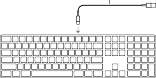

Interruptor de encendido/apagado
Puerto Lightning
Para enlazar el teclado Magic Keyboard con el Mac, utilice el cable de conector Lightning a USB que venía con el teclado. Inserte el extremo del conector Lightning en el puerto Lightning del teclado y el conector USB en un puerto USB del Mac. Coloque el interruptor de encendido/apagado del teclado en la posición de encendido (el interruptor se iluminará con una luz de color verde).
El teclado se enlazará automáticamente con el Mac.
Una vez que el teclado se ha enlazado, puede desconectar el cable y utilizar el teclado de forma inalámbrica.
Personalizar el teclado Magic Keyboard Entre otras cosas, podrá cambiar las teclas de modificación y asignar funciones rápidas de teclado a los comandos del menú en las aplicaciones de macOS y en el Finder.
Para personalizar el teclado Magic Keyboard:
Seleccione el menú Apple > Preferencias del Sistema y, a continuación, haga clic en Teclado.
Haga clic en Teclado, Texto, “Funciones rápidas” o “Fuentes de entrada” para personalizar el teclado.
Usar las teclas de función


Use las teclas de función situadas en la parte superior del teclado para ajustar el brillo de la pantalla, para abrir Mission Control, para acceder a las aplicaciones con el Launchpad, para controlar el volumen, etc.
|
|
Abra el Launchpad para ver al instante todas las aplicaciones del Mac. Haga clic en una aplicación para abrirla. |
Retroceda en la reproducción actual o vaya a la canción, película o pase de diapositivas anterior. |
Inicie o ponga en pausa la reproducción de canciones, películas o pases de diapositivas. | |
Avance en la reproducción actual o vaya a la canción, película o pase de diapositivas siguiente. | |
Desactive el sonido de los altavoces o del puerto de auriculares del Mac. | |
Reduzca o aumente el volumen del sonido de los altavoces o del puerto de auriculares del Mac. | |
Mantenga pulsada la tecla de expulsión de discos para expulsar un disco. |








Renombrar el teclado Magic Keyboard
El Mac asigna automáticamente un nombre único al teclado Magic Keyboard la primera vez que se enlaza. No obstante, si lo desea, puede modificar este nombre en el panel de preferencias Bluetooth.
Para cambiar el nombre del teclado:
Seleccione el menú Apple > Preferencias del Sistema y, a continuación, haga clic en Bluetooth.
Pulse la tecla Control y haga clic en el teclado y, a continuación, seleccione Renombrar.
Introduzca un nombre y, a continuación, haga clic en Aceptar.
Cargar la batería
Utilice el cable conector de Lightning a USB suministrado con el teclado. Inserte el
extremo del conector Lightning en el puerto Lightning del teclado y el conector USB en un puerto USB del Mac o en un adaptador de corriente con puerto USB.
Para comprobar el estado de la batería, seleccione el menú Apple > Preferencias del Sistema y, a continuación, haga clic en Teclado. El nivel de carga de la batería se muestra en la esquina inferior izquierda de la ventana.
Nota: Cuando el teclado Magic Keyboard no se utiliza, entra en modo de reposo para prolongar la duración de la batería. Si no
va a utilizar el teclado durante un periodo de tiempo prolongado, desconéctelo para prolongar todavía más la carga de la batería.
Eliminar un enlace
Tras enlazar el Magic Keyboard con un Mac, puede volver a enlazarlo con otro Mac. Para hacerlo, elimine el enlace existente y, a continuación, vuelva a enlazar el teclado.
Para eliminar un enlace:
Seleccione el menú Apple > Preferencias del Sistema y haga clic en Bluetooth.

Seleccione el teclado y, a continuación, pulse el botón Eliminar situado al lado del nombre del teclado.
Limpiar el teclado Magic Keyboard
Para limpiar la superficie exterior del teclado, utilice un paño que no deje pelusas. No deje que entre humedad por ninguna abertura,
ni utilice productos en aerosol, disolventes ni sustancias abrasivas.
Ergonomía
A la hora de usar el Magic Keyboard, es importante encontrar una postura cómoda, cambiar de posición a menudo y realizar descansos frecuentes.
Para obtener más información sobre ergonomía, salud y seguridad, visite la página web de Apple sobre ergonomía en www.apple.com/about/ergonomics.
Batería
El Magic Keyboard no contiene piezas cuyo mantenimiento pueda llevar a cabo el usuario. No intente abrir o desmontar el
Magic Keyboard ni extraer, aplastar o perforar la batería; tampoco debe exponerla a altas temperaturas ni a líquidos. Si desmonta el Magic Keyboard, puede dañarlo o puede lesionarse.
El servicio de mantenimiento o el reciclaje de la batería de iones de litio del Magic Keyboard debe llevarlo a cabo Apple o un proveedor
de servicios autorizado, por lo que la batería se debe desechar separada de la basura doméstica. Para obtener información sobre las baterías de iones de litio de Apple, visite la página www.apple.com/mx/batteries o www.apple.com/la/batteries.
Más información
Para obtener más información acerca del uso del teclado, abra Ayuda Mac y busque “teclado”.
Para obtener información sobre soporte y resolución de problemas, acceder a foros de debate de usuarios y descubrir las últimas novedades en descargas de software de Apple, visite www.apple.com/mx/support o www.apple.com/la/support.
Características Eléctricas

Modelo: A1843 Entrada: 5V 1A
Bem-vindo ao seu Apple Magic Keyboard com Teclado Numérico
O seu Apple Magic Keyboard tem uma bateria recarregável e usa a tecnologia Bluetooth® para conectar-se sem fio ao seu Mac.
Este manual mostra como usar o seu
Magic Keyboard, inclusive emparelhamento, personalização e recarga da bateria.
Atualize seu software
Para utilizar o Magic Keyboard e toda a sua gama de recursos, atualize seu Mac para macOS 10.12.4 ou posterior.
Para atualizar para a versão mais recente do macOS, escolha o menu Apple > App Store a fim de ver se há atualizações. Siga as instruções na tela para atualizar o macOS.
Configure o seu Magic Keyboard
Cabo de Lightning para USB
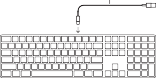

Interruptor liga/desliga Porta Lightning
Para emparelhar o Magic Keyboard com o Mac, utilize o Cabo de Lightning para USB fornecido com o teclado. Conecte a
extremidade Lightning à porta Lightning do
teclado, e a extremidade USB à porta USB do Mac. Deslize o interruptor liga/desliga para a posição “liga” (de modo que você veja a cor verde no interruptor).
O teclado será emparelhado automaticamente com o Mac.
Após o emparelhamento do teclado, você pode desconectar o cabo e usar o teclado sem fio.
Personalize seu Magic Keyboard
Mude as teclas modificadoras, atribua atalhos de teclado a comandos de menu de aplicativos no macOS e no Finder, e muito mais.
Para personalizar seu Magic Keyboard:
Escolha o menu Apple > Preferências do Sistema e, em seguida, clique em Teclado.
Clique em Teclado, Texto, Atalhos ou Leiautes de Teclado para personalizar o teclado.
Use as teclas de função
Use as teclas de função na parte superior do teclado para ajustar o brilho da tela, abrir o Mission Control, acessar aplicativos com o Launchpad, controlar o volume e muito mais.
Diminua ou aumente o brilho da tela do Mac. | |
Abra o Mission Control para ter uma visualização abrangente do que está sendo executado em seu Mac, incluindo o Dashboard, todos os seus spaces e todas as janelas abertas. | |
Abra o Launchpad para ver instantaneamente todos os aplicativos em seu Mac. Clique em um aplicativo para abri-lo. | |
Retroceda ou volte para a música, filme ou apresentação de slides anterior. | |
Reproduza ou pause músicas, filmes ou apresentações de slides. | |
Avance rapidamente ou vá para a próxima música, filme ou apresentação de slides. | |
Silencie o som dos alto-falantes ou da porta de fone de ouvido do Mac. | |
Diminua ou aumente o volume do som dos alto-falantes ou da porta de fone de ouvido do Mac. | |
Pressione e segure a tecla Ejetar Mídia para ejetar um disco. |













Renomeie seu Magic Keyboard
O Mac atribui automaticamente um nome exclusivo ao Magic Keyboard na primeira vez em que você o emparelha. É possível renomeá-lo nas preferências Bluetooth.
Para renomear seu teclado:
Escolha o menu Apple > Preferências do Sistema e, em seguida, clique em Bluetooth.
Pressione Controle + clique no teclado e, em seguida, escolha Renomear.
Digite um nome e clique em OK.
Recarregue a bateria
Use o cabo Lightning para USB fornecido com o seu teclado. Conecte a extremidade Lightning à porta Lightning do teclado, e a extremidade USB à porta USB do Mac ou a um adaptador de alimentação USB.
Para conferir o estado da bateria, escolha o menu Apple > Preferências do Sistema e, em seguida, clique em Teclado. O nível da bateria é mostrado no canto inferior esquerdo.
Nota: Quando você não estiver usando o Magic Keyboard, ele entra em repouso para conservar a energia da bateria. Caso planeje não usar o teclado por um longo período, desligue-o para conservar ainda mais a energia.
Remova um emparelhamento
Após emparelhar o Magic Keyboard com um Mac, você poderá emparelhá-lo novamente
com outro Mac. Para isso, remova o emparelhamento existente e, em seguida, emparelhe o teclado novamente.
Para remover um emparelhamento:
Escolha o menu Apple > Preferências do Sistema e, em seguida, clique em Bluetooth.

Selecione o teclado e, em seguida, clique no botão Apagar ao lado do nome do teclado.
Limpe seu Magic Keyboard
Para limpar a parte externa do teclado, use um pano sem fiapos. Não permita umidade em quaisquer aberturas nem use sprays de aerossol, solventes ou abrasivos.
Ergonomia
Ao usar o Magic Keyboard, é importante encontrar uma postura confortável, mudar sua posição com frequência e fazer pausas regularmente.
Bateria
O Magic Keyboard não contém peças substituíveis pelo usuário. Não tente abrir ou desmontar o Magic Keyboard nem remover, esmagar ou perfurar a bateria do Magic Keyboard ou expô-la a temperaturas altas ou líquidos. A desmontagem do
Magic Keyboard pode danificá-lo ou causar ferimentos a você.
A bateria de íon de lítio do Magic Keyboard deve ser substituída ou reciclada pela Apple ou um fornecedor de serviço autorizado,
e deve ser descartada separadamente do lixo doméstico. Para obter informações sobre as baterias de íon de lítio da Apple, visite www.apple.com/br/batteries.
Mais informações
Para obter mais informações sobre o uso do teclado, abra a Ajuda Mac e busque “teclado”.
Para obter informações de suporte e solução de problemas, discussões de usuários e as transferências mais recentes da Apple, visite www.apple.com/br/support.
J:?;: Apple Magic Keyboard (T/:\=--tt ) " '5Jfcl(JOJ Apple Magic Keyboard !c!Hf\!1''1:0J
1\ •yT 1J- 1J'A -::i·n =s1J, Bluetooth® T ? .Jo 9 - {!
il"!lll,-c Mac l: '7,(-\' ::Zc !lt 1'\L,afo .
LOJ:ff-{f-:C-1;:I:, «7 1J ',/· 1J7./17<1'A, 1\, ·:6 :..1) - 0)
3'Effl.{!-a',t;, Magic Keyboard OJ1! 1..,11J,r {!filt'.B JK,* 9 o
'J7 1--'J I Y T 'Y1'T - l--9 -G
Magic Keyboard l:'t0Jo,-z-ca,l!!tm1tile!llo-l>l:lal
<Dif:1..,,0) Mac{!: macOS 10.12.4 J::)Jal(;:y,;o"T-1-
Vc<T.:'c'c•.
macOS {! ffi;\-::h::,,(;:y,;o"T-1--9-G!:l;:L T•y
:fJt,;,<=::i-> rApp St□reJ t. :!RL.,--C, T •;.,7'T - f-.
tJ'®-GtJ,C?tJ,{!-Efll L.,*9" @iiffil;: ff-: tl-Gmff-1;:
"\lt.-::it, macOS {!:T •;.,:f "T- l--l.,*9 o
Lightning - USB 7-/JL,
□ □ De::::= = ::□□ □□ □□□CJD
c:::::J
□□□□□□
□□□□□□□
c□
:::::J □□□
□□□□
o
I c[D

Magic Keyboard{!: Mac t.« T 1J/ '/9 -@l;: (,;:J:
'1,)f:cl(JOJ,t-,f,-1'!:itlillOJ Lightning - USB 'T- 7!,ltil"/lll,,<Tcc'v. Lightning ffl111tct- ,f,- 1'0J Lightning ,f, - Hcil' L,i/,,t, USB ffllj{i' Mac 0) USB
,f,- Hc il' L,i/,i/t af, . ct-,f,-f'OJ;t:,/:n::z1',,r1t
::Z'71'f'c'tt-C;t:,!CL,afg (::Z1''YrlJ'li!l!C§jJL,afg).
4'- ;f - 1'/J'ia!I.W JIC Mac [C'"7' ') / '.1a'tl al', .
cf - ;f - 1'/,S"".r 'J:, '.1,>tt rc,"'
;f - 1'1' '.J1' t>v7- 1'.1"/!l1'.i' al'o .
'T- :1J, 1'eH ,t, 4'
M agi c Keyboard 1':ln9,1';(o-s
*Mi::f--1.!: l,f=.IJ, macOS7 7'1J J;-- :;'/3 / -f.i
Finder O);,t= .:i.- :::r ;;z:,,i-,:(.: - ;;t,:- t,::::,,3- l--1J•;; I--
l!i'l'J t lc•J l,,al'g .
M agic Keyboard 1':/:J7-9,1;(99fCl;I :
1. 7,y/J1.,J--=i-> r:.,-:;z y-1., t.f! J t.i'.!URL,'"C,
r -;;f,:-t-:J ? 1 ) •y'./ l.,&::9o
2. r::f-- ;f - r'.J, r:i.- -t:f5¥1h r:::,,3- t--1J•;; I,--J £1.::li
fA 7J'J- A J ')IJ,y')l.,""C :;\'-- ;f - j-::1,t1J : $'? ,(
:t 1,, al', .
7r "J1/3/ ::f-- {fJl'l99
'74:;z/ L.,-10)/l!l!Jl' !:H,i=.1J, Mission Control
lffli..,\f.:: J, Launchpad -Z:'? / 1Y:r- Y3/ l.:T?t AL, 1=. J, ffffl:1.i::tJiiffiH.,;t;: J9-@.te"li, ::f--;f--t,:..:O)_t$(;: d!i-@ 77'/?':/3 /::f--1,r{fl,1£9 D

- -:◊:-;//'.- Mac 7'D-7HOJf!llt1'1'1f7':'J (-:6:-)
.tlfTc•J (•:s•:) l.,£ 0 ,

Mission Control {! /ffll,1"C Mac LC'
fil,Tl,,,s,t,O), roashboardJ, 9-"'
1:"0) fFAX:- ,A criJ:tfg,,.zc:O)m:]t,Y'(
, c il,,:,-(:.,1'".11' - !!: if- i.,£,,

ggg Launchpad tr/ffll.Y"C Mac _t(J)"g;( T.O)T 1Jlr - 1/3/ {!-!ll/il l ns;l, £ 9 o lffl<( l;:J:-t O)Y / 1JQ"- Y3 / {! ? h1 .1'/ l,
,£ ,

,i;,-i;a.,Tc•J. ii1JOJlll3. 1"-t:-, £Tel;!
7.'51'1':; a- lCl, 11/J l.,Tc'J i.,£ ,9

II 1113. l..- · - aer clal 7.'71'1':; a- U l'.U
7':1;1- 111j1' J!:i.,£g,

"'"')1.,7':'). /ROlilll. 1"-t:·-. £7':(;I 7.'51'1':; a- lCl§ II/J L,Tc'Ji.,£ ,9

Mac 0)7 1:::"- 1:l- f-i","- Yf-:7 :t/ ::f- f--fJ,
'i tll:i:J2':f1il>'la," 1'l'j i.,£g ,

t:J>)) Mac OJ7.t:'- 1:l- -l'"- •, 1'7 :.,,r - c /J•
i:itl:l 7J tl ff O)ff ffl:trl lf t.:• J (cl>)
.t lfT c'J ( l))) l.,£9,

Y-T-(P · 1':/i ? t-- · :f - tr L, lt -s,it 7 -,7.? IJ'lll1'Jtil 2':f1£,g

Magic Keyboard OJ:tM l&:£99
Mac1.: Magic Keyboard 1,rl ;:tt;&b -C-"'7 1)/ '.190 C- =F- ;f - t-::!.: Wffl OJ;g JroiJ'-ft E £ 9 o .::OJ;gJro(;:t
' Bluetooth J !J l!!alll'c lltl!l'c·,e£, .
'f - ;f,- l' GJ,!;i\iJ'ifl rll!o glCl al :
1. 7,;1/Jt,;;,l,.=.:i.-> yr :;z7 1.,.J!i5±.iifiliil:'.J tliHRL,-C,
fBluetooth J '7h1 '7l.,£ 9 o
2. Control =F- ¥f!L,tJ iJ1':=iF- ;;f,:- f-:'.'if:'71J·:'i7L,·c
C,i;ll)iJt li!J 1i:;J!lRl £ 1f.
3 . i\i\ii!i:J,"1Jl, ' O KJ 1i:?'h-7l£1f.
J\ •;1T 1)- Jf'ii 9 9
'1'iol<'9GJ'f-;f--l'lcitli<GJ Lightning - USB 'T -
7!, H l'lll l c<Tcc,C'. Lightning ffi'i!i:'f-;f--l'GJ
Lightning ;f,- Hcil' l i/;,<ff USB ffii!i:' Mac G) USB
f-1'£7':la USB !l!i!l7' -5''1 91 Cil'l i/;<ff£ 1f .
1\ •;1T 1J- o:i:t !rn oi Ml,9 Ql.:(;:t, 7, y--JJl,;;,l,.= .:i.- >
f :;_,:;z j=-.l,. !j !9:il:'.J tii!iRL,"(, f=F-;;f,:-f-:'.J {r'7,l) y'7
l£1f. li'T!lllC/l •, 7'' J- G)j J1a , /J a' c,n £, .
lf: :Magic Keyboard Ii, 1\ •;1T 1 ) - 1<!'.ifflf-J9 0
&9(.:, if: -::i-Ct,, tJt,, t El ;:t:::Z 1J- /ml.:tJ >J£9o =F- ;;t,:
l' H ! ll\\railil'tJ tJ L'l: >elal, !l!i!l1i:l/b c '1'i<l: c,S lc1(,, 7' 'J - 1i:l!li'Jc >e£ 1f.
/'l{J'l)/ )Wl\;t,"gg
Magic Keyboard -a: Mac f.: ,;,r:: 1J:,,•;'iL, 1f c\
Jllj(T) Mac 1.: /'l{J' 1) / ·'.i' L,@9 L C.iJ\Z:'E£ 9 o 'f:(T) &I) l.:(;:t, l-JU ECD/'1{7 1) > ?' 1<!:JW L,-ciJ,':J, =F-;;f,:-t,::{r,;,:: 7' 1)/ l,[ :L,£ 90
1.y, ;.1/ Jt,;;<..=.::i.- > r ::,,:::zT L.n!!m filtiE'J t.JHRL,,--c
r s 1uetooth J ?, 1J y'7l,£9 o
2. ac- as- 1'-leillJRL,1:,1J e;. ac- f - l' a, OJ l/41c il5;,, IJl\1i;Js9 :, I ) -le'.71h '.'.71., ,1'-; ,
Magic Keyboard -le;J!l/11,-s
c\'- f - l' OJ'1\-ilil-le;i!!,,il -sl: 2, '1 . lt lt l'.l:-01:C•'JC'm
1<!:ff:,El:l L--C <tC.'i!:l.\o r., iJ, ':'J7}(1J\A•Ji.2:,.£tJ t,\ J: -51::: L.,
-i:<r,i';c>, a'Tc. x t - ;;:OJ IBHt '.'.7'J- -t - . ;l;jjlJ.
o:Fl JtJ C! ;J fie:t, tJ l.\t- <t0:2"1., \o
Magic Keyboard -leile/ll, i>l: 2'1, . lc!lf>c·i'-s lli -le)<-:>l t . 'lli ICu!il'l -lell: :s.Tc1Jit l!l-lel!l-:,lc1J L,1: ( tC.C:l.\o
ct '!i ,11,-leil!-/llo -sll!iJ!OJ'.9:3':lt l: Ji!it lC-', :l i>!!J'l!'IC-:>C' c, l . i'l'!IHlliJ!IC!/lg i, Web +t1' f-H l' l.,T <t,·,e, c : www.apple.com /jp/about/ergonomics
/\ •;17 ')-
Magic Keyboard !:::l;:L :i - +ffJ\ Jlt- -@i53c\?i! J ®
•J£ t! A,o Magic Keyboard mllt t:::•h t lWL tt.•JL,tJ
l.'1': <tO:C:l.\ o £ 1,=. Magic Keyboard (JJJ - :;T 1J- tr.
Jt:l:l9, -::i, :9, /\ lffllt -Q, i9i;1t!l :Pi:# l:::C:':'9i ;::t_
l;:f:l.,tJ 1..,1 1: <t.:::.' 2"l.1o Magic Keyboard {!-$r!Vf9-@L
Magic Keyboard t:iimmL t:,:•J
tJ.1]\ &;IJ a-;"9 o
lt :f:itf!:L,t::•Jg-@dJ'Z
Magic Keyboard 0) 1J7 -, 1..,.4 ;:t/ 1 ·c1T 1J - ( ;L
Apple a' Tcl, iEll!+t- t:'"::Z::f□lh -'.flc J: -:,1: i J!l'a' Tc
1, 1J+t-('.7 )Ci';rt . si<!l: 2'.iltl, : l IJICil!li!i';rti>,0l l'IJ'i15
J 5:9 o Apple (!) 1)'7 "JL,.,,{;t ::,,J, t ;.iT 1) - (;: --:,1.,,-rl cL
www.apple.com/jp/ba tteries $ L,1::<rC..!, 1,,0
d5i<: © -;;f-t.::OJfft,vfJ\tc.1.:-:it,\·nR,<lct, rMac
,,,-Jl,:/ J {tlffll,'t r:f-- ;;f- f-:J JR,t<t2°2"l.'o
+r;r - H l!lll.,o l--"S:1JCO) l'!. 15i!, :i - +ffill± O)fflll/'>'.
I>, lii!lfiO) Apple !!:/ C'7 1--".>I 7 0)$f".> o,□- P Jl:'lc:i
l. 11:lct, www.apple .com /jp/support W L,--c<
f::.'"Ef\,\o
Regulatory Compliance Information
FCC Compliance Statement
This device complies with part 15 of the FCC rules. Operation is subject to the following two conditions:
(1) This device may not cause harmful interference, and (2) this device must accept any interference received, including interference that may cause undesired operation.
Note: This equipment has been tested and found to comply with the limits for a Class B digital device, pursuant to part 15 of the FCC Rules. These limits are designed to provide reasonable protection against harmful interference in a residential installation.
This equipment generates, uses, and can radiate radio frequency energy and, if not installed and used in accordance with the instructions, may cause harmful interference to radio communications.
However, there is no guarantee that interference will not occur in a particular installation.
If this equipment does cause harmful interference to radio or television reception, which can be
determined by turning the equipment off and on, the user is encouraged to try to correct the interference by one or more of the following measures:
Reorient or relocate the receiving antenna.
Increase the separation between the equipment and receiver.
Connect the equipment to an outlet on a circuit different from that to which the receiver is connected.
Consult the dealer or an experienced radio/TV technician for help.
Important: Changes or modifications to this product not authorized by Apple could void the electromagnetic compatibility (EMC) and wireless compliance and negate your authority to operate the product.
This product has demonstrated EMC compliance under conditions that included the use of compliant peripheral devices and shielded cables between system components. It is important that you
use compliant peripheral devices and shielded cables between system components to reduce
the possibility of causing interference to radios, televisions, and other electronic devices.
Responsible party (contact for FCC matters only): Apple Inc. Corporate Compliance
1 Infinite Loop, MS 91-1EMC Cupertino, CA 95014
Canadian Compliance Statement
This device complies with Industry Canada license- exempt RSS standard(s). Operation is subject to
the following two conditions: (1) this device may not cause interference, and (2) this device must accept any interference, including interference that may cause undesired operation of the device.
Le présent appareil est conforme aux CNR d’Industrie Canada applicables aux appareils radio exempts de licence. L’exploitation est autorisée aux deux conditions suivantes : (1) l’appareil ne doit pas produire de brouillage, et (2) l’utilisateur de l’appareil doit accepter tout brouillage radioélectrique
subi, même si le brouillage est susceptible d’en compromettre le fonctionnement.
Industry Canada Statement
CAN ICES-3 (B)/NMB-3(B)
EU Compliance Statement
Apple Inc. hereby declares that this wireless device is in compliance with the essential requirements and other relevant provisions of the R&TTE Directive.
A copy of the EU Declaration of Conformity is available at www.apple.com/euro/compliance.
Apple’s EU representative is Apple Distribution International, Hollyhill Industrial Estate, Cork, Ireland.


Japan VCCI Class B Statement

Battery Charger System Efficiency

Apple and the Environment
At Apple, we recognize our responsibility to minimize the environmental impacts of our operations and products. For more information, go to: www.apple.com/environment/
Regional Disposal and Recycling Information

The symbol above indicates that this product and/or battery should not be disposed of with household waste. When you decide to dispose of this product and/or its battery, do so in accordance with local environmental laws and guidelines.
For information about Apple’s recycling program, recycling collection points, restricted substances and other environmental initiatives, visit www.apple.com/environment.
Información sobre eliminación de residuos y reciclaje
El símbolo de arriba indica que este producto y/o su batería no debe desecharse con los residuos
Brasil—Informações sobre descarte e reciclagem
O símbolo acima indica que este produto e/ou sua bateria não devem ser descartados no lixo
doméstico. Quando decidir descartar este produto e/ou sua bateria, faça-o de acordo com as leis
e diretrizes ambientais locais. Para informações sobre substâncias de uso restrito, o programa de reciclagem da Apple, pontos de coleta e telefone de informações, visite www.apple.com/br/environment.
European Union—Disposal Information
The symbol above means that according to local laws and regulations your product and/or its battery shall be disposed of separately from household waste. When this product reaches its end of life, take it to a collection point designated by local authorities. The separate collection and recycling of your product and/or its battery at the time of disposal will help conserve natural resources and ensure that it is recycled in a manner that protects human health and the environment.
© 2017 Apple Inc. All rights reserved. Apple, the Apple logo, Finder, Launchpad, Lightning,
Mac, Mission Control, and Spaces are trademarks of Apple Inc., registered in the U.S. and other countries. macOS is a trademark of Apple Inc.
App Store is a service mark of Apple Inc., registered in the U.S. and other countries.
The Bluetooth® word mark and logos are registered trademarks owned by Bluetooth SIG, Inc. and any use of such marks by Apple is under license.

