This page gives an overview of the Editorial UI and also contains some useful tips and tricks to help you get the most out of it.
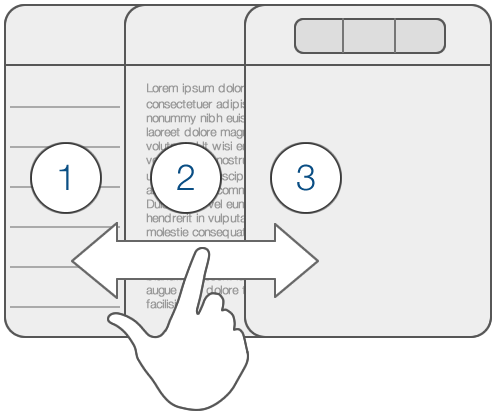
The app is organized in three main panels that you can show and hide by swiping left and right.
Editorial is heavily optimized for writing Markdown. If you’re new to this, or if you need a little refresh on its basic syntax, please refer to the short Markdown Primer.
The information in these chapters is primarily about the core features of the app. Even if you already know your way around, you may want to skim a few sections for additional tips and tricks. If you want to learn more about extending the editor with your own workflows instead, please read the section on Building Workflows.
